
Creating Third-Party Users
The third-party user is granted detail-level-access to only those SAs on which he or she is a participant.
About this task
See the System Third-Party Users policy for complete information on Third Party Users in SES.
Procedure
-
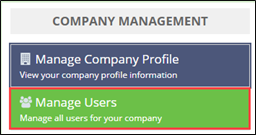
Click Manage Users on the homepage.
-
Click Third Party Users.

-
Click Create Third Party User in the top right.

- Complete the user information fields and assign the Third-Party role.
-
Click Create New
User.
-
Upload a confidentiality agreement associated with the Third Party user.
Note: The confidentiality agreement is visible to the EIC, any team leads from participating agencies on a multi-state SA, and the company lead for the SA on the Participants page and when sending a request to an agency to add the third party user to an SA.
Results
Two emails are sent to the third-party user to set up his or her account in SES, similar to the company account setup process. See Logging in to SES for the First Time for detailed steps on the account setup process.
New users must verify that they are affiliated with the a company before getting access to the system. As a part of this process, third party users can identify their association to your company as a part of their SES profile (e.g., law firm, audit firm, accounting firm, etc.).
If the new user rejects the company association request, the onboarding process ends and the agency receives a notification of the rejection.